How To Setup IPTV Smarters Pro on iPhone & iPad
Quick iOS setup tutorial for IPTV Smarters Pro (or Smarters Player Lite). Follow these simple steps to install the app from App Store, login with Xtream Codes API, and start watching Live TV, Movies and Series on your iPhone or iPad.
Table of Contents
What is IPTV Smarters Pro?
IPTV Smarters Pro is a popular IPTV player that allows you to stream Live TV channels, movies, series, and other content through your IPTV subscription. It works on multiple platforms including iOS.
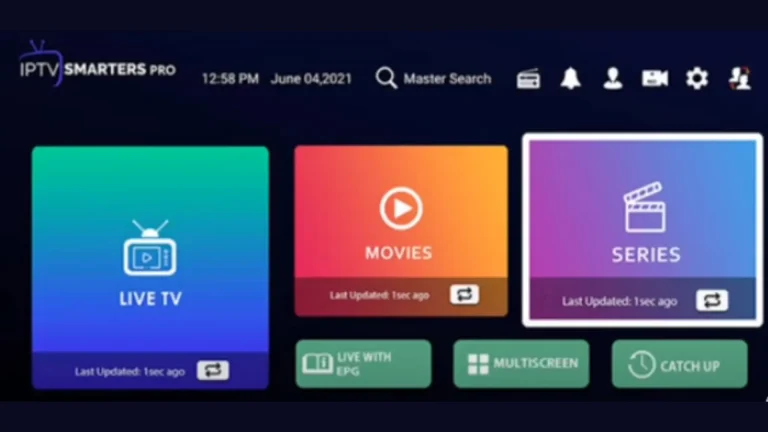
Latest Smarters Pro Updates (iOS)
- Application Name: Smarter Pro / Smarters Player Lite
- Application Version: 2.5.7
- Size: 84.4 MB
- Developer: WHMCS SMARTERS
- Installs: 10M+
- Latest Update: August 22, 2025
On iOS, you may find it under names like IPTV Smarters Player or Smarters Player Lite.
Smarters Pro is just a player. You need an IPTV subscription to watch content. Test a stable IPTV line on iPhone/iPad before buying a plan.
How To Install IPTV Smarters Pro on iPhone / iPad
Follow these easy steps to install and configure the app on iOS.
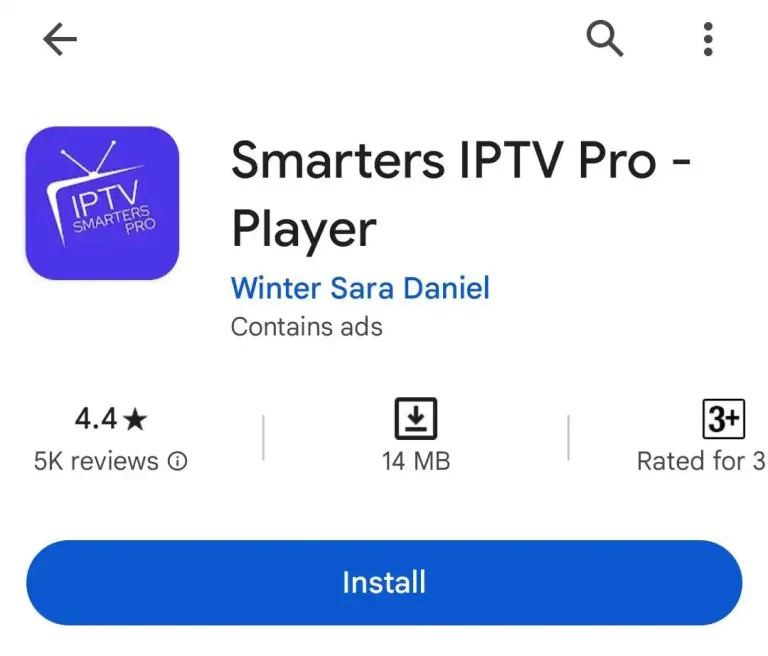
Step 1 – Download from the App Store
Open the Apple App Store, search for IPTV Smarters Player / Smarters Pro and install it. Some users prefer iOS alternatives like 247 Player.
Step 2 – Choose Xtream Codes API
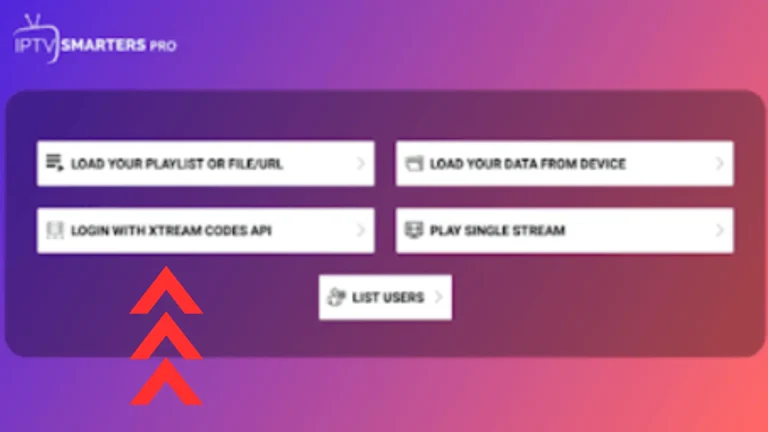
When you open the app, you will see options like M3U and Xtream Codes. Choose Login with Xtream Codes API for best stability.
Step 3 – Enter your login details
Fill in:
- Name (any label you want)
- Username
- Password
- Server URL
These details are sent by your IPTV provider. Then click Add User.
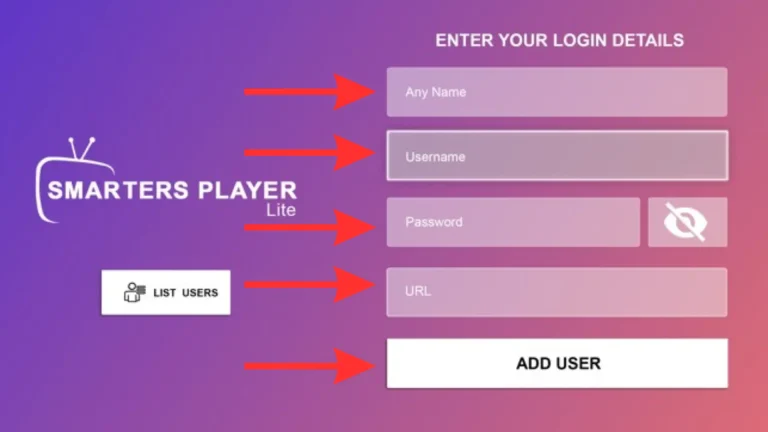
Step 4 – Wait for the app to load your content
After login, the app connects to the server and loads your categories automatically. If something is missing, contact support to switch server.
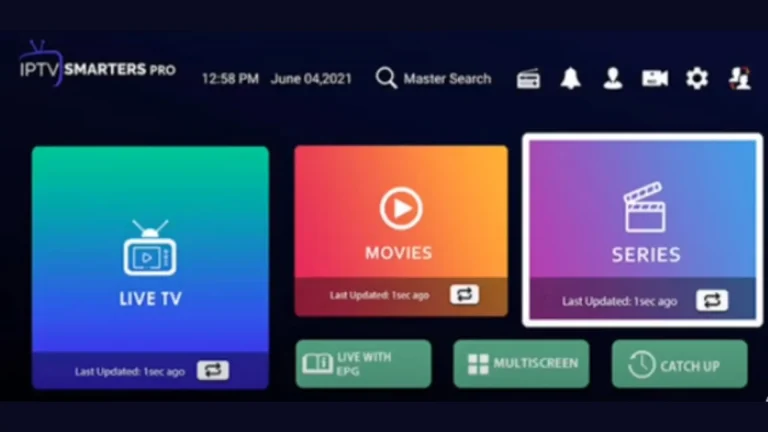
Step 5 – Download Live TV / Movies / Series lists
Finally, download the three sections: Live TV, Movies, and Series. Then you’re ready to watch.
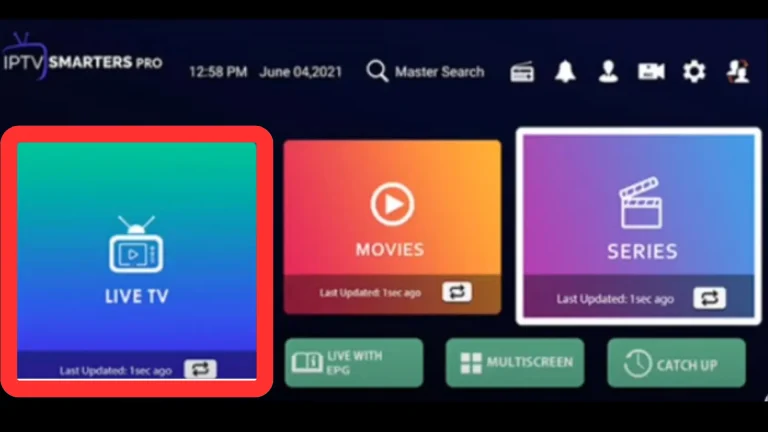
Login with Xtream Codes API on iOS
Xtream Codes method is recommended because it is faster and avoids many M3U copy/paste errors on iOS.
- Server URL (including http:// and port)
- Username
- Password
If login fails, double-check spelling (iOS autocorrect can change characters).
Best IPTV Tips for iPhone/iPad
- Use strong Wi-Fi or 5G for HD/4K streaming.
- Enable hardware decoding if the app supports it.
- If buffering happens, lower quality or use a VPN.